Edit - June 8 2026: Proton mentions were removed as I stumbled upon a recent news that Proton did a paid partnership with a french far-right youtuber (context from a Reddit link).
They answered saying they weren't aware and will do better, but while they were drafting an answer, they deleted all posts talking about this on their subreddit. Their reply is not bad, but the fact that they spend a good amount of time deleting all posts talking about this and banning people sharing it was a bit too much to my taste. You do what you want with this information.

Disclaimer: I'm sharing my own opinion and process through this blog post, these are my own observations and I'm not claiming them to be the absolute best. If you disagree with what I wrote that's okay too. Here is a rat having fun browsing my website, that could be you.
INTRO
In my previous blog post I talked about things I found relatively easy to Degoogle from (browser, search engine, password manager), but today I want to focus on a couple more complicated services like email providers. I will also throw in a couple of other easy replacement about other services.
One thing I want to add: I know it can be discouraging to learn that the other options don't have exactly the same features as the Google products you're used to, but I think it's a small convenience sacrifice to make to reclaim your online privacy back.
◎ AUTHENTICATOR / 2FA:
Whether you want to use an autenthicator or not is up to you, but in case you want to ditch Google Authenticator, there are a couple of options that are worth it. Authenticators are usually free, I never encountered a paid option personally, and it's very easy to transfer your codes. I personally use Ente Auth!
To transfer your codes from the Google Authenticator app: from the top left menu, select "transfer codes" and it will create QR codes that you can scan in your new authenticator app to import them. Since these are QR codes to be scanned, you will probably need to upload them on a computer or another phone to do the transfer. These codes are sensitive data, be careful to delete them if you transfer them to another device.
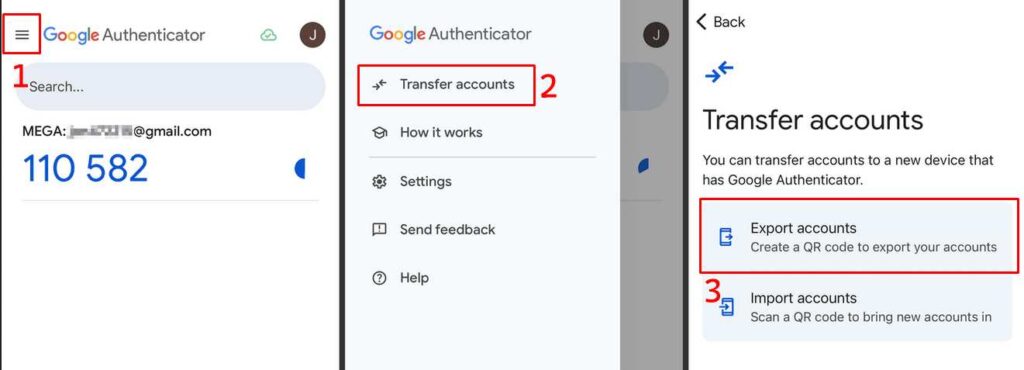
What I personally ended up doing is transfer the QR codes images to my PC locally using LocalSend (incredible software by the way, I recommend it). To use LocalSend, your phone and PC needs to be on the same wifi for it to work. Once the transfer and import was done in Ente Auth, I deleted the images from my PC and made sure the trash can contents were deleted as well.
Note how they mention the transfer is for "a new device that has Google Authenticator". I assure you it can transfer to ANY other authenticator app, they just don't want you to know. A few websites like Nintendo account mention that you need to add a "Google Authenticator" for 2FA, as if it was the only option... For 2FA you can almost always use an other app.
Note: if you really don't want to export the QR codes, you can always log into each account that has a 2FA authenticator linked and disable it, then re-enable with new authenticator app.
Here are the steps to transfer:
▢ Find your new authenticator
▢ Export QR codes from Google Authenticator
▢ Transfer them to a PC or another cellphone (avoid sending them through a chat)
▢ Import the QR codes by scanning them in your new authenticator
▢ Confirm that codes were imported and synced by comparing the list and codes between the Google Authenticator and your new authenticator
▢ Safely remove the QR codes on the PC or other cellphone: delete them and empty the trashcan/recycle bin
◎ EMAIL PROVIDER:
Ah yes, finally... let's talk about emails providers. Moving away from Gmail is going to take a long time, I'm not going to lie. In my last blog post, I mentioned making a list for all services you use... so, before we begin anything, it's time for you to list all the places where you use your email!
I recommend not rushing this one either, as it's even easier to burn out from it. I started with a simple check list note that I could reach easily when I was on my phone or PC, to add new items fast. Each time I would open a website where I had to log-in, I would add it to the list. Sometimes, it's not something you access often, like a doctor's portal or an old forum. Additionally, each time I received an email, I would also note where it came from as it helped me clean old unwanted subscriptions. You could also forward emails from your old email provider to your new, once you pick one.
It's hard to keep track of where your email is used, I made a rough list inspired from my own that you could use to start (in no particular order):
- Doctor office
- Hairdresser
- Bank Account
- Bluesky
- Mastodon
- Electricity provider
- Internet provider
- Nintendo account
- Ebay
- Govenment Taxes
- Cellphone plan
- Unity Account
- WordPress
- Twitch
- Steam
- Library
- Playsation account
- etc...
The list can seem like it will never end but don't give up!
Now that you started writing your own list, we can talk about email providers. Picking a new one can feel daunting because of how many exists out there, you feel like you can't make a mistake, or the pain to change your email address all over again will be too high of a cost. When I moved away from Google, I looked into purchasing my own domain to host my emails (it does sound complicated, and it might be a bit... but I like the peace of mind). I've been using this setup for almost a year now and it works really well for me.
Here is a few email providers I saw often suggested, some of my friends also use them. I recommend you look for other alternatives yourself too, as some of them may have less features than what you're used to:
- Tuta (personal choice) - Limited free use - Paid option around €3 /month - Calendar + contacts, drive coming in 2026
- Inkomaniak (as part of my kSuite) - Limited free use - Paid option around €1.50 /month - office suite like google + drive
- Mailbox - No free option - First paid option starts at €1 /month, standard at €2.50 /month - office suite like google + drive
- Posteo - No free option - €1 /month, cheap options to add additional calendars, addresses and storage - Email + calendar + contacts only
Note: all these options are hosted in europe 🐁!
As you can see, many of them have a limited free tier, it often has limits like storage, number of email address associated with it, etc. I personally chose Tuta and pay for the first premium tier. The web inbox looked simple enough, they had apps available outside of Google Playstore and I admit I liked the fact that it focused only on emails and calendar.
I also chose to get my own domain for my email address. Having your own domain means purchasing a domain lets you use it as an email address, like: WhateverYouWant@YourDomain.com, instead of having a:WhateverYouWant@tuta.com. It can be useful if you wish to move from an email providers to another more easily, or just to customize your email address to look cool. However, having a custom domain means you also need a paid subscription from your email provider. The email domain customization is often available only when you're paying for their services.
We are used to get any online services for free: emails, drives, office... and Google knows it. They worked on polishing their products until they were the best on the market, and are now holding many people trapped in their ecosystem. I understand that paying for an email hosting service can be an added cost and not everyone can afford, or want to pay for. Thankfully, other free options aside from Google exists like listed above. I'll give ressources at the end of the article to find even more alternatives.
About the domain name, I chose to go with Netim, a french domain registrar. Their support was helpful and gave me pointers on how to setup my email domain as I was moving from another registrar and didn't want to miss anything.
Almost all email providers will have a guide on their website to show how to setup a custom domain with your email address. you can check this video guide (sorry for the Youtube link) just to get an idea of how it's done. Its something you only have to setup once and then forget about.
Here are a couple of domain registrars worth checking:
- Porkbun.com (US based)
- Netim.com (France)
- INWX.de (Germany)
Note: I won't recommend Namecheap as they are complicit in Israel genocide (sources here and here).
Now that you have a list of places to update your email, found your new email provider and maybe got a new domain, it's time to start changing your emails everywhere, little by little!
Before going into the recap step for emails, I want to briefly talk about additional email addresses and plus addressed emails if you're not using them already.
- Additional email addresses: often, email providers will allow you to create additional email addresses under the same account. That means you could have two addesses you can use like PrimaryAddress@tuta.com and AdditionalAddress@tuta.com both under the same account of PrimaryAddress@tuta.com. You can use them to sort things in your folders, or to seperate which address you use for each websites. If you have a custom domain you can usually add as many as you want!
- Plus addressed emails are a way to modify your email address on the fly to use on a website without having to create a new email account or address. If you want to order on a shopping platform but don't want to give them your real email, you could write PrimaryAddress+shopping@tuta.com and it'll still be sent to your inbox. As many will point, this doesn't hide your email address as anyone can remove the +shopping, some providers may have a service to hide the email alias. I just wanted to share this tips to people who might not know it!
To recap the steps to switch email providers:
▢ Make a list of all the websites/accounts/places where your email is used
▢ Find a service you like and test if for a bit using the free tier. You may need a bit of time to test all the features and see if it fits you. Take your time.
▢ Optional: create an email redirection from your previous email provider to your new one
▢ Optional: get a domain name and set it up. Test it to see if you can receive emails fine. This can take a couple of days to set up.
▢ Once you know it'll be the one: start by changing the most obvious and important ones like your bank, governments accounts, cellphone and internet plans, etc.
▢ Go through the list little by little. Just do 2-5 per day max until it is defeated so you don't burn out.
Note: These steps take a lot of time. Again, I recommend to not rush. Yes you'll feel weird because you're in-between two email providers but trust me.
Some websites will require you to contact support, sometimes you need to contact people by phone (had to do that for my doctors office), but I found it relatively straightforward most of the time.
Having a new email provider is nice but you're most likely missing your contacts and calendar, you can export them from gmail and import them into your new provider! Here is how to export your calendar events and how to export your contacts from Google. You can also export all your emails from Gmail and import them back into your new provider if that's something you wish to do. Beware that some providers like Tuta only allows email import if you're subscribed to higher paid tier. Here is where you can find all the info to export your data from Google.
I personally chose to start at a blank state with Tuta since my old email box was chaotic. I've been using Tuta with a custom domain for almost a year now and I haven't ran into any issues.
◎ CLOUD DRIVE AND OFFICE SUITE:
If you've been using Gmail for a long time, chances are that you also used their cloud drive and office suite. Thankfully, the popular alternatives to Gmail also feature these kind of services! From the email provider listed above, 3 are offering the same services. I will list them again below.
- Inkomaniak (as part of my kSuite) - Limited free use - Paid option around €1.50 /month - office suite like google + drive
- Mailbox - No free option - First paid option starts at €1 /month, standard at €2.50 /month - office suite like google + drive
If you prefer to keep these services separate from your email account, you might also find other options:
- CryptPad - Free tier with 1GB - Paid option around €4.58 /month - Full office suite + drive + forms + kanban - no mobile app
- Filen - Free tier with 10GB - Paid option around €3.99 /month - drive and notes only - mobile app (no APK outside of Google Play)
- Murena Workspace - Free tier with 1GB - Paid option starts at €1.99 /month - full office suite + drive + forms + kanban - no mobile app
- pCloud - Free tier with 10GB - Paid option starts at USD$4.99 /month - Drive and photos - mobile app (no APK outside of Google Play)
I will be honest though, having an online office suite for a personal account that works as well as Google Office Suite is hard to find, and the options are somewhat limited. I don't mind at all personally, I only use it when I need to share shomething with friends, so I resorted to use CryptPad for the couple of times where I need it. Otherwise, I make documents offline on my PC and send them by email.
For online drives, I don't use them much now. I used to have a bunch of backups on it but I realized it was not that useful to me and I was just giving that data freely to google. I did make a free account on Filen to try it, I really don't use it much so I think I could delete it and my life wouldn't change. Over the years, I moved away from online drives and prefer to backup things at home over different hard drives now.
Steps to move away from your old drive:
▢ Find your new cloud drive.
▢ Download all your documents in one or multiple archives on your PC.
▢ Verify that all your data was correctly exported.
▢ Optional: make a backup on a USB key or external disk.
▢ Re-import them into your new drive.
▢ Once you verified that everything was securely imported, you can delete the files on your old cloud drive. Make sure you also empty the trash in your drive.
Another 3 items down the list! If you made it through the article and this helped you plan for your Degoogling journey, let me know!
A WORD BEFORE NEXT TIME
The email part is honestly the most tiring to take care of. Part of it for me was due to how I felt like I ran in all directions, trying to find a good alternative that suit my needs. Looking over so many reddits posts, blogs, websites... to see all the choices that exists. My mind was overloaded with information and I feared I was going to make a bad choice. This is why I decided to write my own blog posts, and hopefully, it will help you too.
I just want to plug this website that helped me a lot:
While choosing european products doesn't mean you'll get entirely free of disgusting anti-privacy practices, but at least, it's not hosted in the US.
Another thing I want to highlight: I know I recommended it at the beginning of my post but I wanted to talk about it again: LocalSend. It's a little software, for ALL PLATFORMS that allows you to effortlessly share files, folders, text between devices. It's extremely useful to me and I use it every day. I'm just so glad I found it, I've been in dire need of something like that for years.
Thanks for reading me today, hope it helped! Squeak you soon for the next part.
byebye 🐁👋!